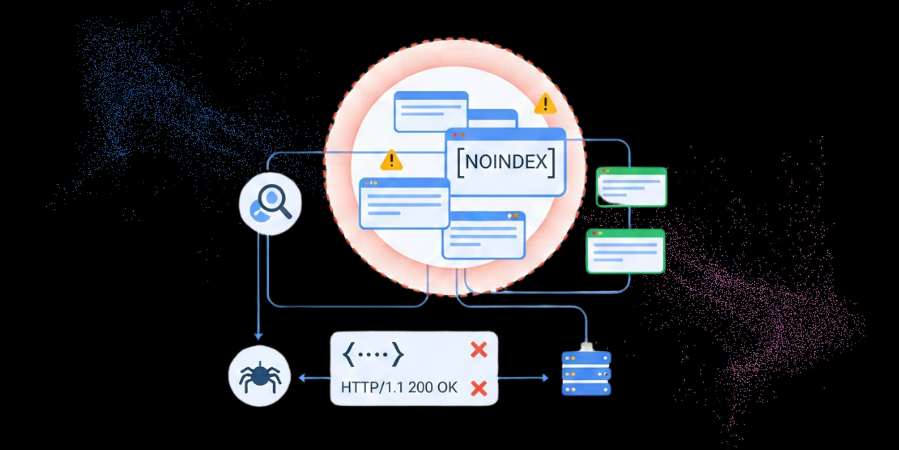
There are times when Google Search Console shows ‘Noindex’. This is confusing because you are pretty sure that you did not add one over there. These are referred to as phantom noindex errors and are among the most frustrating mysteries in search engine optimization (SEO).
These issues make you even madder because they tend to be invisible. Your content management system (CMS) shows nothing wrong. Your developers also swear that they did not make any changes. Yet Google insists that those pages have been blocked from being indexed.
In this blog, we will talk about these errors, why they happen, how you can detect them the right way, and, most importantly, how you can fix them without any guesswork.
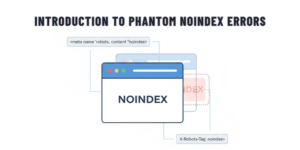
What Are Phantom Noindex Errors?
Phantom noindex errors happen when Google Search Console reports that a page has been indexed. Still, it does not have a <meta name=”robots” content=”noindex”/> tag in the hypertext markup language (HTML), an X-Robots-Tag Hypertext Transfer Protocol (HTTP) tag, or you have never applied such a directive to the page.
To be precise, in such cases, Google believes that a page has been blocked, but you cannot find the block.
These indexes often become visible under Pages – Not indexed – Excluded by ‘noindex’ tags. In edge cases, they may show up under the Crawled – currently not indexed tag.
They also tend to proliferate following these events:
- Site Migrations
- Plugin Changes
- CMS Updates
- Server Configuration Updates
Why Are These Issues So Common?
Modern websites tend to be complex ecosystems. Google reads more than your visible HTML – it also processes the following:
- Headers
- Rendered JavaScript
- Cached Responses
- Redirects
- Historic Signals
This means that noindex directives might be present in locations you are not actively checking.
The following are the biggest causes of these issues:
1. HTTP Headers
- The most typical issues in these cases are HTTP headers, JavaScript-injected noindex directives, SEO and CMS plugin conflicts, accidentally crawled staging environments, and cached noindex signals. The last one here may seem improbable, but it does indeed happen.
- HTTP headers are the most overlooked culprits in such cases. They can apply noindex rules at the server level, through caching or security rules, and via content delivery network (CDN) configurations.
- For example, if it puts such a header tag – X-Robots-Tag: noindex, nofollow – Google can exclude the page even if your HTML is clean.
- To check the problem in this case, follow this path: URL inspection > View Crawled Page > More Info. Else, you can run: curl- I https://example.com/page/. This step alone can resolve many phantom cases – the number will surely surprise you.
2. JavaScript-Injected Noindex Directives
Does your site depend a lot on JavaScript frameworks like React, Vue, and Next.js? In that case, noindex tags may be added dynamically after each page load.
Google typically renders pages in two waves – the initial HTML crawl and the JavaScript rendering phase. Even when a script injects a noindex tag, Google might record it, no matter how brief it is.
The most typical triggers here are:
- Misfiring SEO Plugins
- Conditional Rendering for Users vs. Bots
- Environment-Based Rules – Production vs. Staging
There are two main ways to check this. You can use this path – URL Inspection > Test Live URL. Otherwise, you can compare rendered HTML with raw HTML. In case the rendered version contains a noindex tag, that is your ghost!
3. SEO and CMS Plugin Conflicts
WordPress, Webflow, Shopify, and headless CMS setups often depend on multiple SEO control layers.
In such cases, phantom noindex errors often appear when:
- Two SEO plugins conflict
- Bulk rules are applied unintentionally
- Global settings override page-level settings
The most prominent examples of these are:
- Toggled on “noindex archive pages.”
- Custom post types set to noindex by default
- Briefly enabled “discourage search engines.”
In such cases, Google might cache the directive even when such settings are active for a short time.
4. Accidentally Crawled Staging Environments
This is a classic scenario whereby your dev or staging site uses noindex correctly, but:
- It becomes publicly accessible.
- Google crawls it anyway.
- Universal Resource Locators (URLs) match production patterns.
If redirects, shared templates, or canonicals leak such signals into production, Google might associate the live pages with the noindex directive.
The most important warning signs here are:
- Sudden spike in noindex exclusions
- URL inspection shows conflicting signals
- Pages, which were indexed earlier, disappear suddenly
5. Cached Noindex Signals
This may sound surprising in this situation, but it happens nonetheless! Google never forgets instantly. So, if a page had a noindex tag earlier, Google might:
- Continue to show the exclusion
- Require re-crawling before its status changes
- Delay reprocessing the updated version
This is especially common in the case of:
- Low crawl-priority pages
- Parameter-heavy URLs
- Deep paginated URLs
In such cases, the noindex is no longer there, but Google has not yet updated its understanding.
How to Diagnose These Errors Systematically
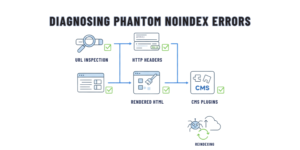
Rather than guessing, you can follow these steps in the exact order they are mentioned to detect such issues:
- Inspect the URL in Search Console
- Check HTTP Headers
- Compare Rendered and Raw HTML
- Audit Plugin and CMS Rules
- Check Historical Changes
In the first step, focus on page indexing in the indexing section, review the Google-selected canonical and its user-declared version, and examine the HTTP response during page fetch in the crawl section.
In the second step, use header-checking tools or client URL (cURL) and confirm that there are no X-Robots-Tag.
In the third step, you need to look for meta tags inspected by JavaScript and verify what Googlebot actually sees.
In the fourth step, you should look at global noindex settings, template-level controls, and environment-based logic.
In the final step, review recent deployments, migrations, and server or CDN rule updates.
Once you have completed all these steps, you can ask Google to re-index the page.
When Should You Request Re-Indexing and When Should You Not?
You must ask for re-indexing only under the following circumstances:
- You have confirmed that there are no noindex directives anywhere.
- Canonicals point properly.
- Headers, rendered content, and HTML are clean.
- The page is linked internally.
If these issues persist, re-indexing will serve no purpose – in fact, it might further delay the problem’s resolution.
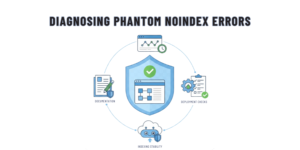
How to Prevent Noindex Issues In The Future
You can take some steps, such as the following, proactively to make sure that noindex issues are prevented going forward:
- Documenting all noindex rules, such as CMS, CDN, and servers
- Monitoring Indexing – Excluded each week instead of once a month
- Separating production and staging domains cleanly
- Logging SEO-related configuration changes
- Testing pages by using URL inspection following deployment
Remember that phantom errors are not random problems – they usually happen when your SEO processes fail.
How Straction Consulting Can Help
It is rare for phantom noindex errors to be technical glitches. They represent deeper SEO blind spots throughout servers, JavaScript rendering, CMS layers, and how Google itself interprets your site.
At Straction Consulting, we do more than fix what the Search Console is reporting – we uncover the reasons why Google sees what it does in such cases. Our team audits headers, CMS logic, rendered HTML, and historical indexing signals to nip phantom exclusions in the bud.
No matter what you are facing – sudden de-indexing, persistent Search Console warnings, or unexplained traffic drops – Straction Consulting can help. We bring clarity, long-term safeguards, and precision so that your pages remain visible, competitive, and indexable.